
Building a local CMS from scratch with Next.js
Friday, March 13, 2026.
My personal site has always been a playground. It's where I try things I wouldn't normally do in a production environment, make opinionated design choices, test weird data models and infrastructure decisions that prioritise my developer experience over scale.
The most recent addition is something I've been putting off since my current website updates: a proper admin interface. I wanted something bespoke, built directly into the site, without a third-party service or a monthly invoice. A dashboard that talks directly to the source files.
Here's how it works, why I built it this way, and what I'd do differently.
The problem
My site has several content-heavy sections that need regular updates:
- Books: a reading list of 500+ entries with categories, cover images, subjects, and finish dates
- Now: a focus list organised by priority ("front burner", "back burner", "cabinet")
- Artifacts: a gallery of personal design work with tags and captions
- Moodboard: a reference image gallery with credits
- Track Record: a chronological career, milestones, and education record
- Content: blog posts, notes, and case studies written in MDX
Every one of these lives in a plain TypeScript file or a folder of .mdx files on disk. lib/books.ts exports an array of 500 book objects. lib/now-data.ts exports a list of tasks. lib/artifacts-data.ts exports metadata for every gallery image.
Here's the directory setup for the Admin CMS, showing the source files for each section:
├── app/
│   ├── admin/
│   │   ├── artifacts/
│   │   ├── books/
│   │   ├── content/
│   │   ├── moodboard/
│   │   ├── now/
│   │   ├── track-record/
│   │   ├── AdminNavClinet.tsx
│   │   ├── layout.tsx
│   │   └── page.tsx
│   ├── api/
│   │   ├── artifacts/
│   │   ├── books/
│   │   ├── content/
│   │   ├── moodboard/
│   │   ├── now/
│   │   └── track-record/
├── lib/
│   ├── api.ts
│   ├── artifacts-data.ts
│   ├── books.ts
│   ├── moodboard.ts
│   ├── now-data.ts
│   └── track-record-data.ts
├── content/
│   ├── casestudies/
│   ├── notes/
│   └── posts/
├── drafts/
│   ├── casestudies/
│   ├── notes/
│   └── posts/
This works beautifully for the site itself: it's fast, typesafe, and version-controlled. But keeping it up to date meant opening the right file, finding the right entry, hand-editing the right fields, saving, and watching the hot reload fire. Fine for a one-off. Tedious when you're doing it ten times a week.
What I actually wanted was a GUI that did the file editing for me.
The architecture: source files as database
The core insight is that you don't need a database if your source files are the database.
Every admin page talks to a Next.js API route. Every API route does the same three things:
- Read the TypeScript source file from disk
- Find the right entry by scanning the file for the exact block of text that matches it (using a pattern-matching expression called a regex)
- Patch the matched block with the new values, then write the file back
// Simplified: how the books API patches a single entry
const source = fs.readFileSync("lib/books.ts", "utf-8");
const patched = source.replace(bookBlock, updatedBlock);
fs.writeFileSync("lib/books.ts", patched);
The TypeScript file is the schema, the storage, and the documentation all at once. If I add a new field to the Book type, TypeScript immediately flags everywhere that field is missing.
This has a few interesting properties:
Hot reload is the sync mechanism. Hot reload is the development server feature that automatically refreshes the browser the moment a file changes on disk. When the API route writes the file, Next.js detects the change and reloads the module. The admin list re-fetches and shows the updated data. The public page reflects the change too. The whole system behaves like a live CMS because the development server is watching the very files the admin is editing.
Version control is the backup. Every change to a source file is a potential git commit. If I accidentally delete an entry, git diff shows me exactly what changed. If I want to audit the history of a book entry, git log -p lib/books.ts shows every patch.
Production has zero surface area. Every admin route checks NODE_ENV at the top:
if (process.env.NODE_ENV !== "development") notFound();These pages don't exist in production. They don't generate static paths. They don't appear in sitemaps. The API routes reject requests outside development. There's no authentication system to misconfigure because there's nothing to authenticate against in production.
The dashboard
The entry point is /admin, a 3×2 grid of cards, one per section. Each card shows a live count and a contextual hint: how many books are missing a subject, how many tasks are on the front burner, how many Track Record entries are speaking gigs.
The cards are clickable links that navigate to each section. Simple, but it gives me a useful at-a-glance view of the data health. If the "missing subject" count on the Books card is high, I know I have metadata work to do.
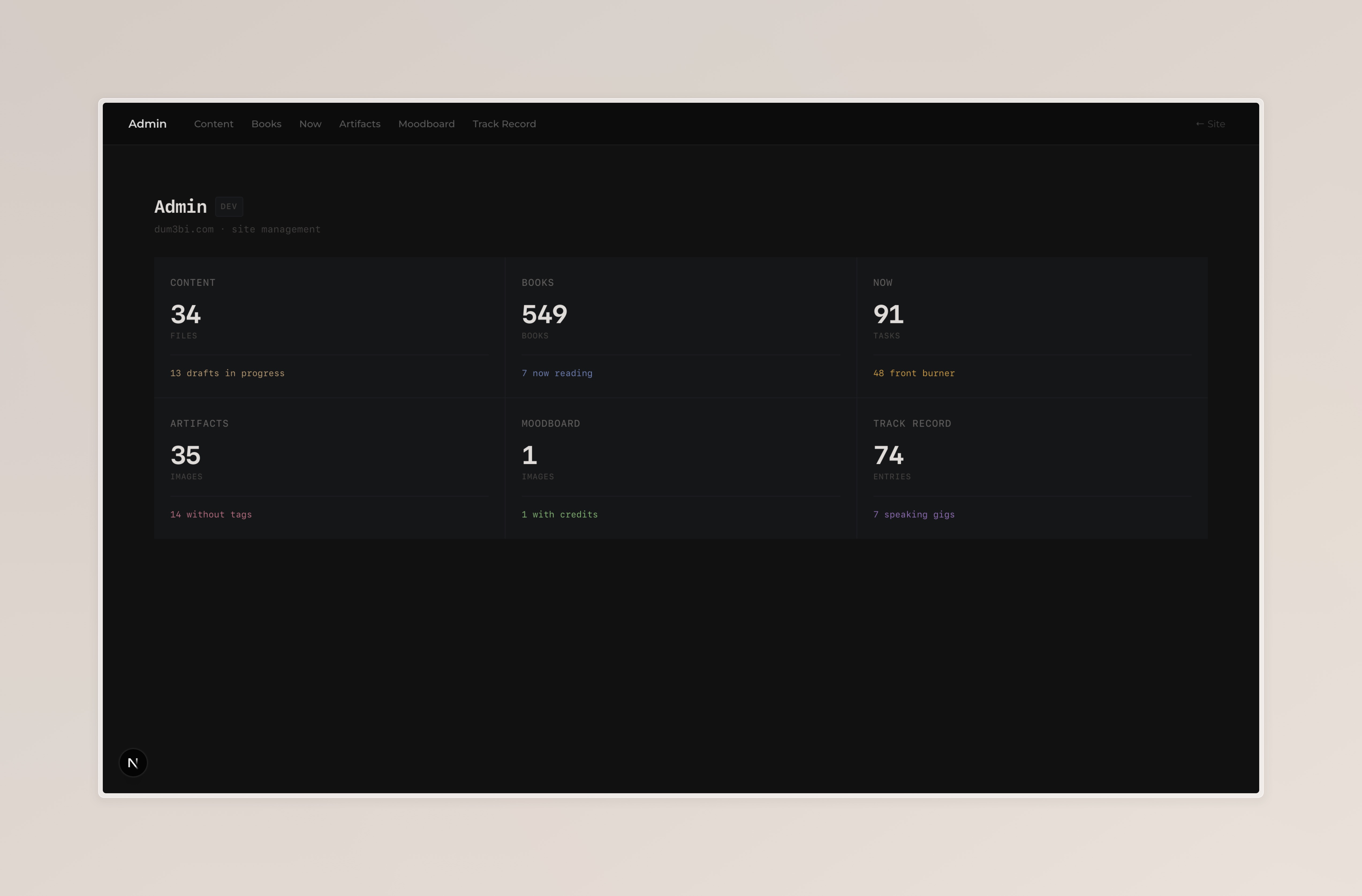 The admin dashboard
The sections
Books
The books admin is the most feature-dense. Five hundred-odd entries means search and filtering matter.
The filter bar has a search input, a quality dropdown (missing subject, missing finish date, missing cover, etc.), and status pills for the five reading categories (Now Reading, Finished, Started, On My Shelf, Want to Read).
Each row shows a thumbnail, title, author, category tag, publish year, and reading status. Clicking a row expands an inline edit panel with every field: title, author, year, category, subject, finish date, cover image, note slug, and boolean toggles for "changed my thinking" and "re-read".
Cover images get their own upload widget. Pick a file, name it, hit upload, and the API saves it to public/images/books/ and writes the path back to the source file. I also have a Python script (ingest-books.py) that bulk-imports books from a markdown list, fetches covers from Open Library and Google Books, and writes the entries to the source file in sorted order.
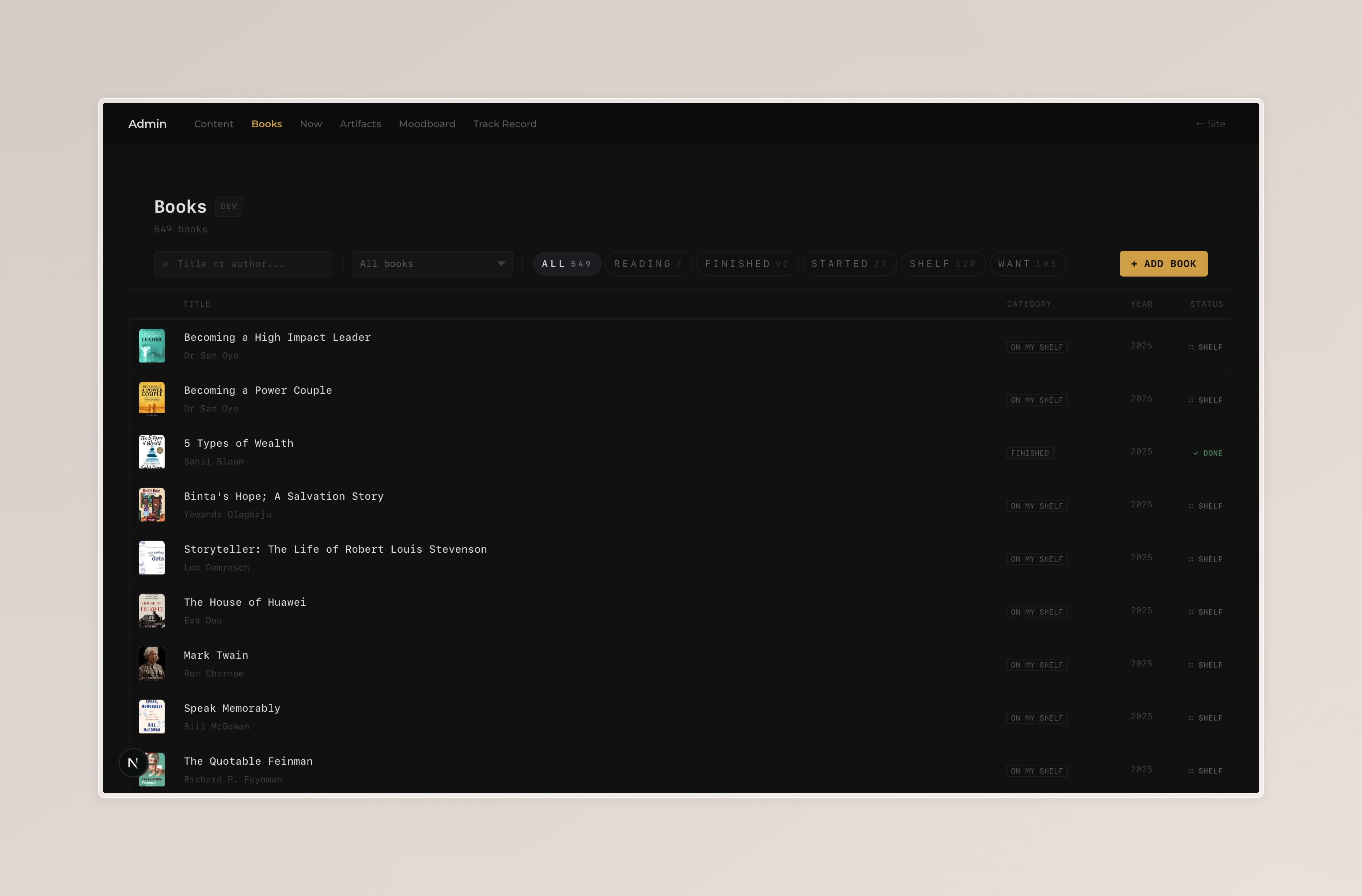 The Book admin page
Now
The Now admin manages the task list on my /now page. Tasks have a title, status (todo / in-progress / complete), a priority level (front burner / back burner / cabinet), and an optional group label.
One behaviour I deliberately automated is the lastUpdated timestamp. Previously I had a manual date picker and an "Update Date" button. I sometimes forgot to update it . Now, every change (add, edit, delete) automatically sets lastUpdated to today's date before writing the file. The displayed date in the header is always accurate without any extra step.
The task list groups entries by their group field. The API route sorts tasks by priority level and then by group before writing, so the file structure stays predictable.
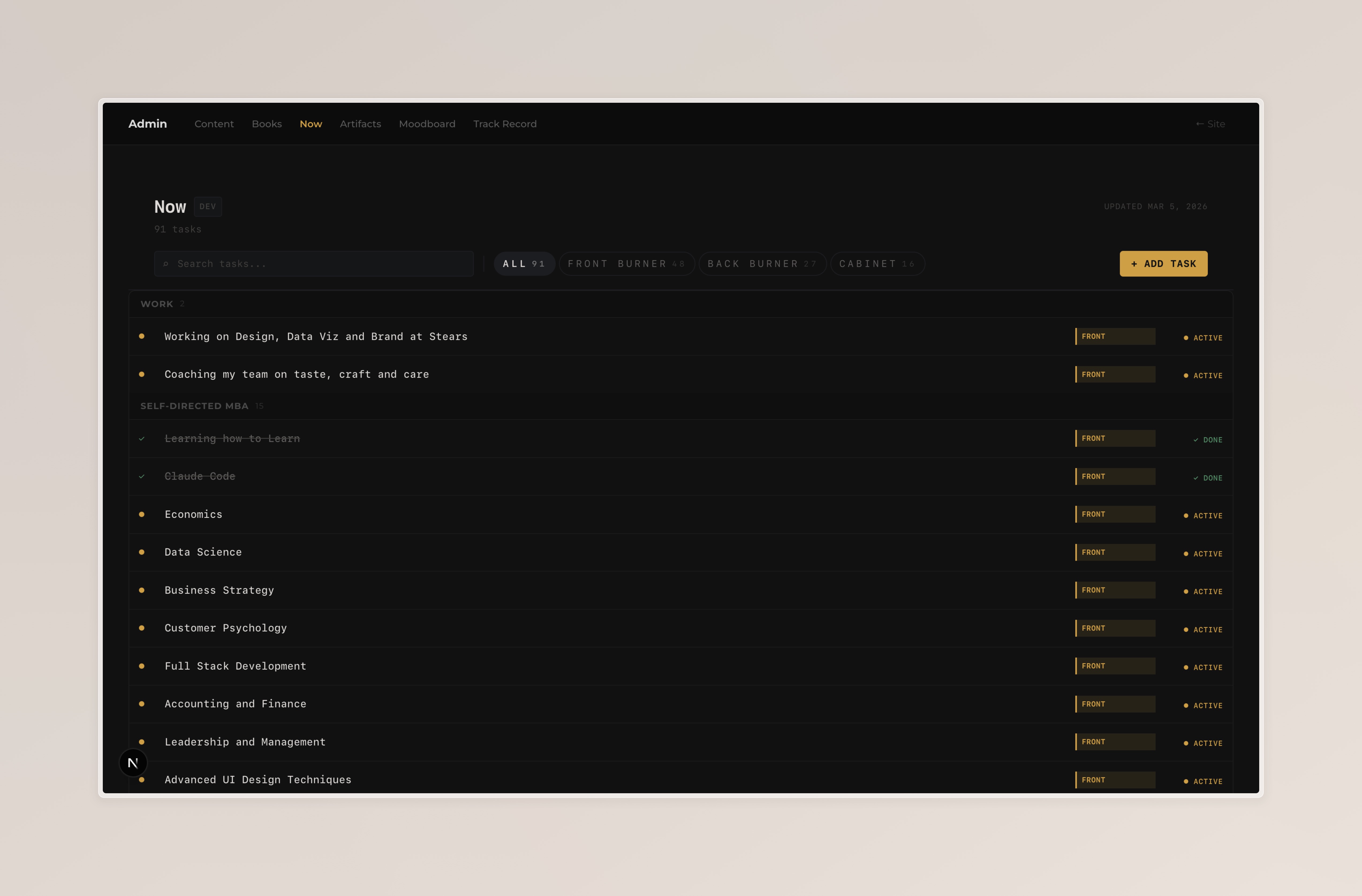 Now admin page
Artifacts and Moodboard
These two follow the same pattern. Each manages a gallery: the Artifacts section is work I made, the Moodboard is reference images that inspire me.
Both support image upload directly to public/, followed by metadata entry (title, caption, tags, year). The Moodboard adds a credit field: the designer or studio behind the image, with an optional URL.
The filter bars differ slightly. Artifacts uses a category dropdown (because there are 11 tag values, more than the threshold where pills wrap to multiple lines). Moodboard uses tag pills (only 2-3 options), then a quality dropdown for filtering by missing metadata.
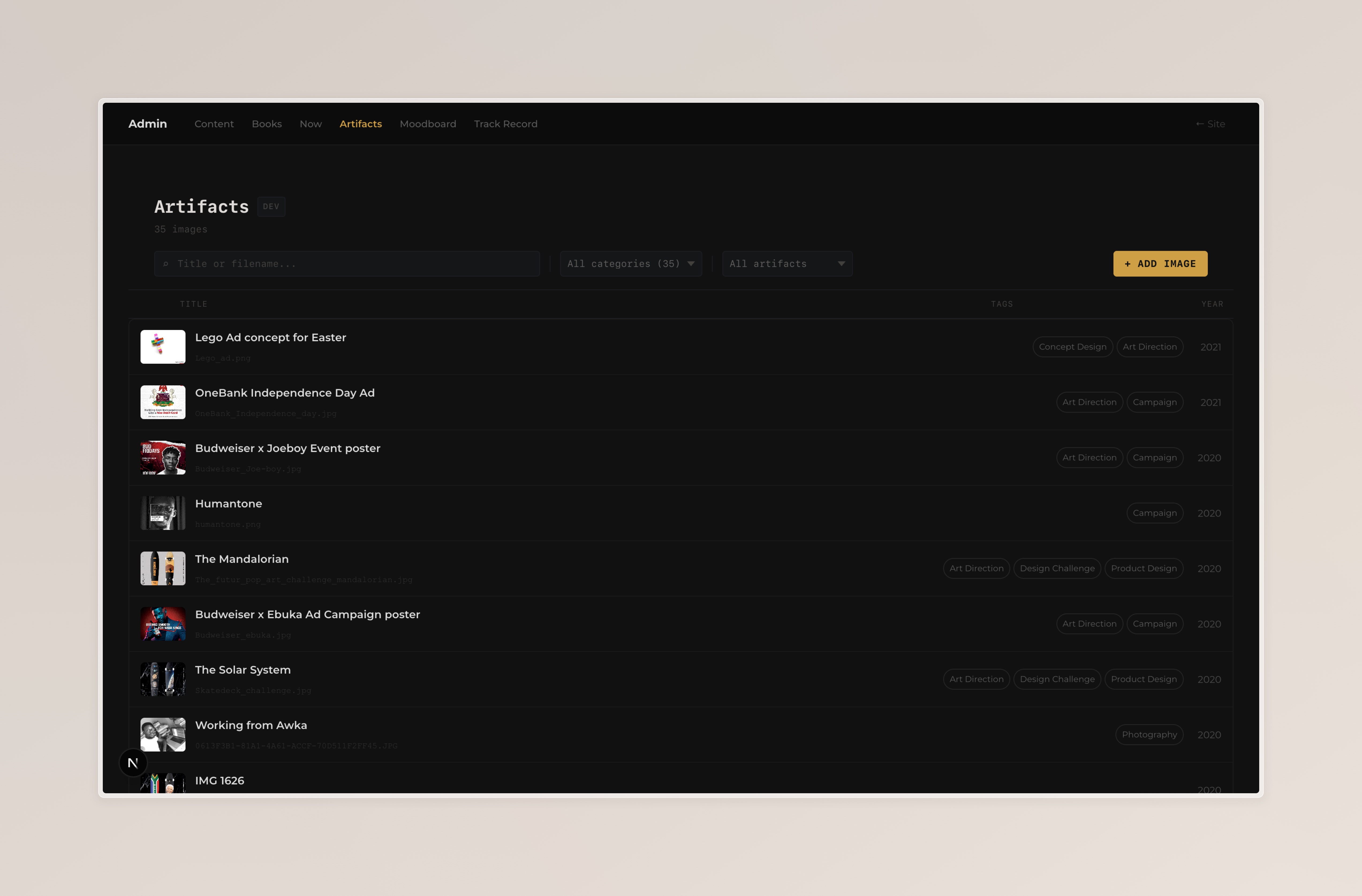 Artifacts admin page
Track Record
The Track Record is my career, milestones and education record. It has twelve entry categories: Career, Education, Certification, Speaking, Podcast, Mentoring, Game Show, Interview, Awards, Milestone, Launch, Gaming.
Twelve categories is too many for filter pills. They collapse into a single dropdown. Each entry in the list shows a type badge with a category-specific accent colour. The colour coding makes it easy to scan the list without reading every label.
Featured entries show a gold star (★) in the rightmost column.
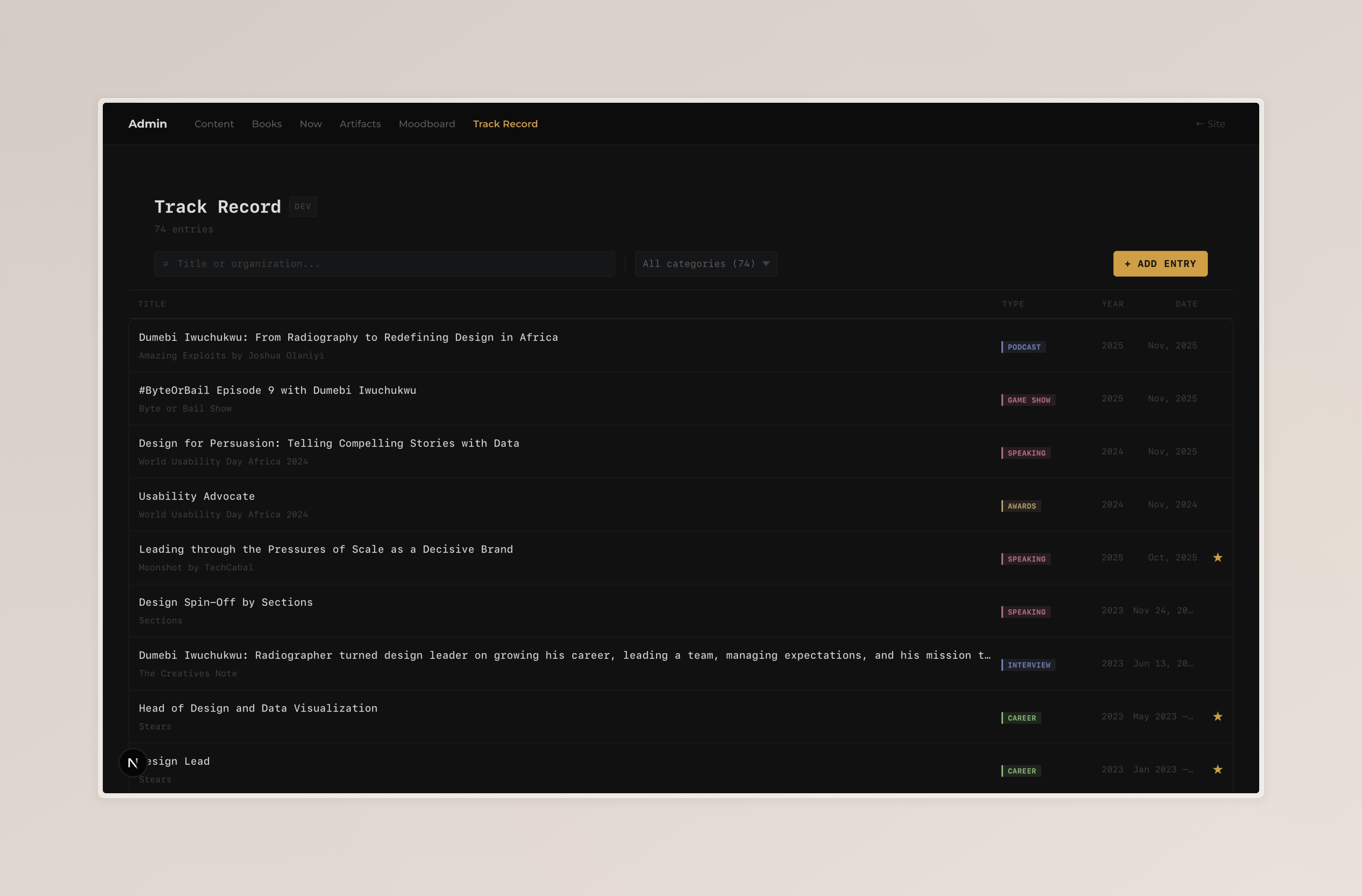 Track Records admin page
Content
The content admin is the newest and most complex section. It manages three content types across two states:
- Posts in
content/posts/(published) anddrafts/posts/(drafts) - Notes in
content/notes/anddrafts/notes/ - Case Studies in
content/casestudies/anddrafts/casestudies/
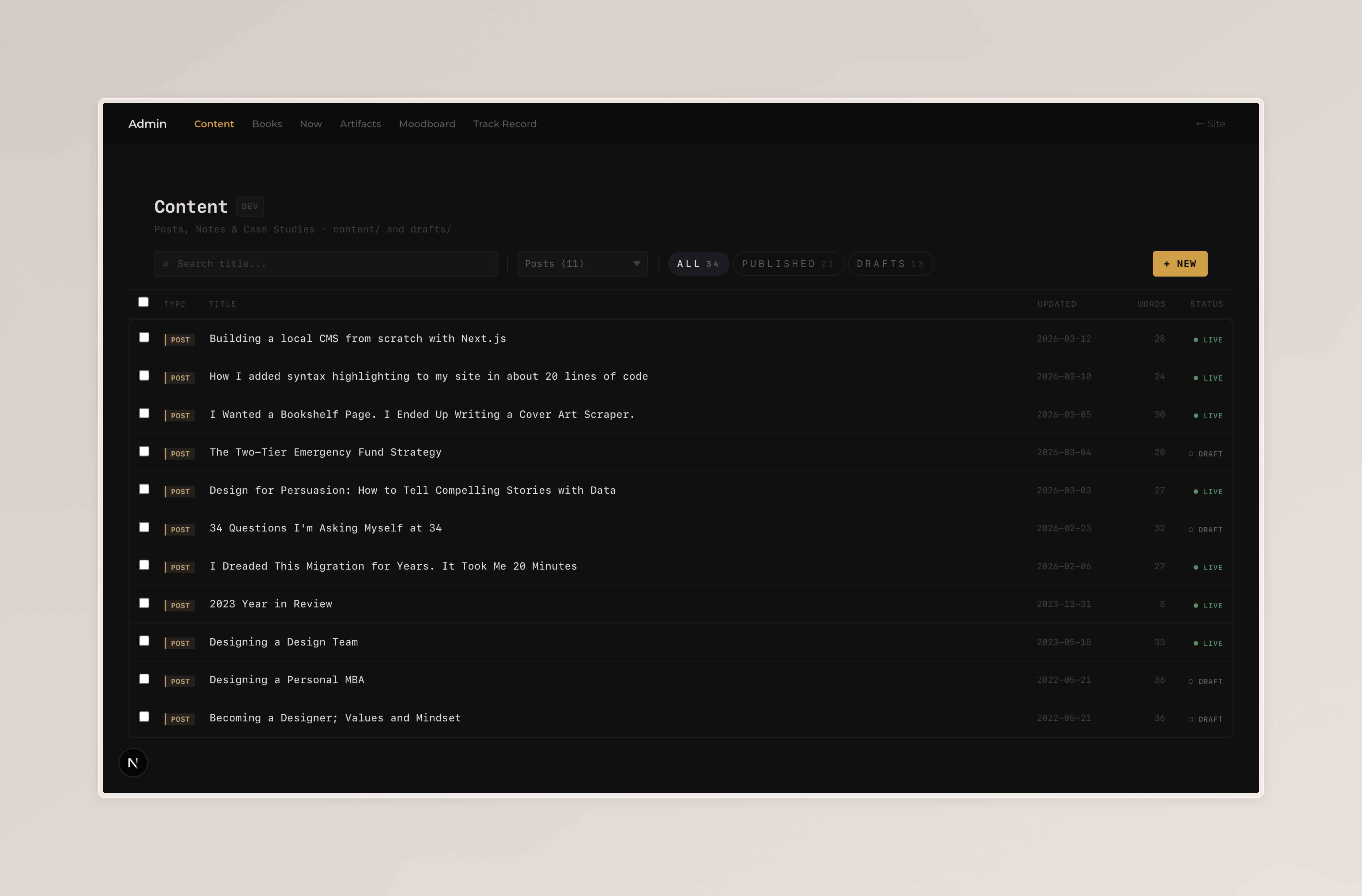 Content Admin Page
The list view shows all 34 content items with type badges, titles, dates, word counts, and publish status. Checkboxes on each row enable bulk selection. A bulk action bar slides in at the top when rows are selected, with Publish and Delete buttons.
Clicking a row opens an editor view. The editor has:
- A slug field that auto-generates from the title (locked after first save)
- Frontmatter fields that change based on content type: posts get date/excerpt/tags, notes get stage/description/tags, case studies get category/cover image/link
- A body editor with two modes: rich text (WYSIWYG) and raw source
The rich text editor is Tiptap. It supports the full prose toolkit: headings, bold, italic, strikethrough, inline code, lists (bullet, ordered, task), blockquotes, code blocks with syntax highlighting, images, tables, and horizontal rules. A bubble menu floats over selected text for quick formatting. The editor serialises to Markdown on every keystroke via tiptap-markdown, so switching to source mode always shows clean, readable MDX.
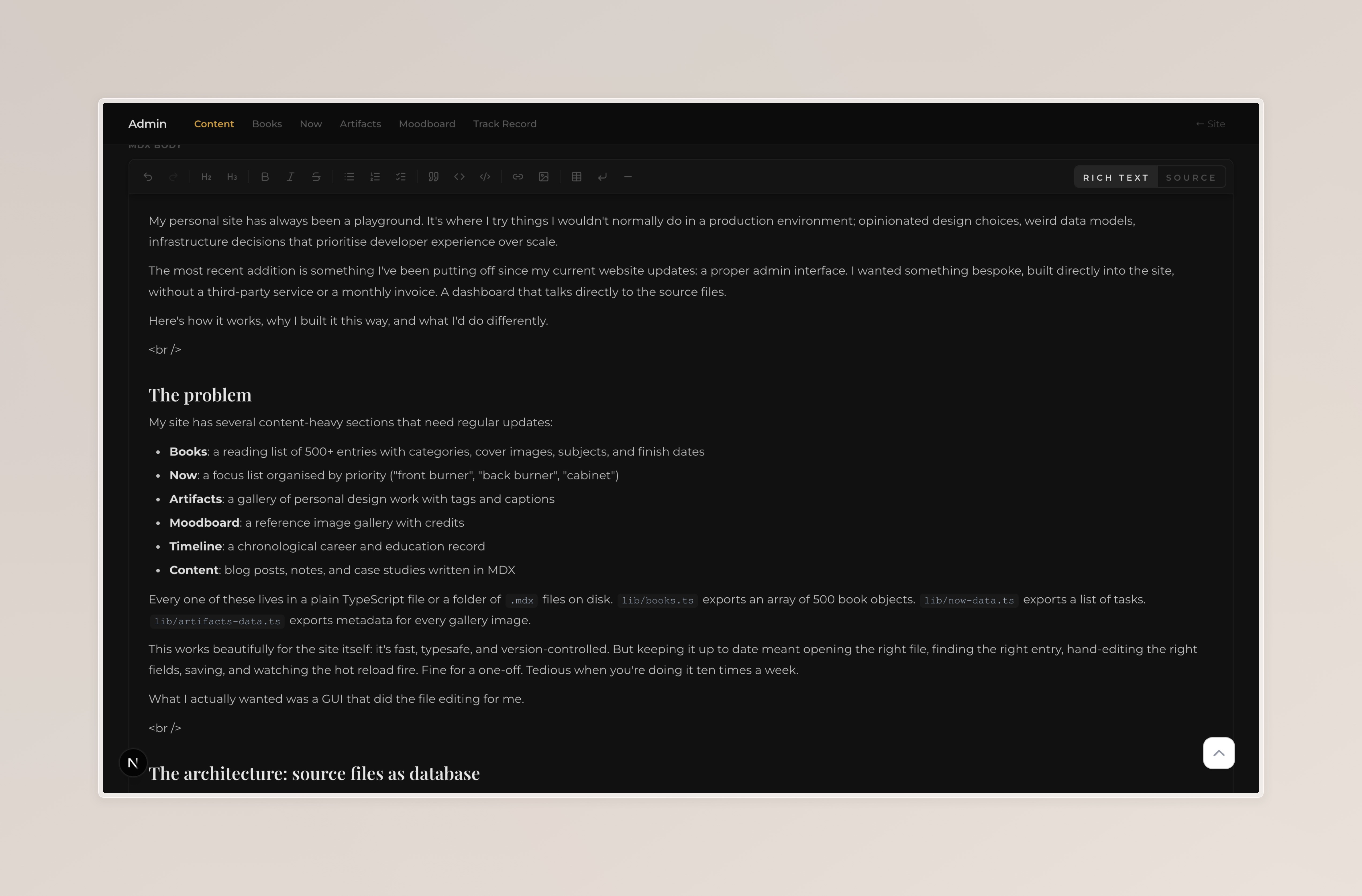 Content page with the Rich text editor
Draft files are saved to drafts/. Publishing moves them to content/ and removes the draft. Unpublishing moves them back to drafts/. The status bar at the top of the editor always tells you which state you're in and what a save will do.
The design system
When I first built this, every admin page was styled independently. The Books page had its own CSS, the Now page had its own CSS, the Track Records page had its own CSS. They looked vaguely similar but weren't actually consistent. Different font sizes, different badge styles, different filter bar layouts.
This time I extracted a shared design system before touching any of the pages.
Making something sloppy because it's "just for me" would have felt dishonest. So the admin looks the way it does not because anyone will see it, but because caring about the thing I made is kind of the whole point.
Tokens first. A single file (admin-tokens.css) defines CSS custom properties for every colour, background, and font used across the admin. The design uses a dark base (#0E0F11), a warm primary text (#E2E0DC), an amber accent (#D4A843), and a structured palette of category colours (blue, rose, green, sand, purple) for type badges.
The font is JetBrains Mono throughout.
Shared components. Twelve reusable React components live in components/admin/ui/:
PageHeader: title, count, unit, and an optional right-side slot (used for the "Updated Mar 9, 2026" timestamp on the Now page)SearchInput: consistent search field with iconFilterSelect: styled native<select>with a custom arrowFilterPills: horizontal pill buttons for small option setsActionButton: accent-coloured "add" button, always at the right end of the filter barFilterDivider: 1px vertical separator between filter groupsStatusBadge: text-only coloured status labelTypeBadge: left-border + 15%-opacity tinted background labelTagBadge: border-outline label for category tagsEmptyState: "No items match your filters." centred text
A threshold rule for filter complexity. Any filter dimension with 6 or fewer options renders as FilterPills, scannable at a glance without any extra interaction. Seven or more options collapse into a FilterSelect dropdown. This keeps filter bars on a single row without wrapping, which was the most common visual problem before the redesign.
Badge design. The old admin used full-colored rounded pills for both status and type indicators, the style you see everywhere in consumer dashboards. They're visually heavy and hard to scan in dense lists. The new badges are:
StatusBadge: icon + label as plain coloured text."● Live","○ Draft","✓ Done".TypeBadge: a 2px left border in the category colour with a 15%-opacity background tint. Both are 9px, uppercase, tracked out. They read as metadata rather than UI elements.
What it enables
The practical effect: I update my site constantly now, in ways I wasn't before.
Adding a book I just finished takes 20 seconds: search for it, click the row, set the finish date and subject, save. Adding a new task to the Now page is a two-field form. Uploading a new artifact means drag and drop, fill in the caption, add tags, save.
The admin itself is version-controlled alongside the site. If I want to add a new field to a content type, I change the TypeScript type, update the admin form, update the API route, and commit.
It's still local-only. I don't have a staging environment. I don't have remote access. But for a personal site, that's a feature: the admin exists precisely in the context where I'm already doing development work. If I'm adding new content, I'm probably also tweaking the design or fixing something. Having the admin and the code in the same environment makes that iteration loop tight.
What I'd do differently
If I were building this to share or to scale:
-
The regex-based file patching is fragile. It works because I control the file format and I don't do anything unusual. But a malformed entry or an unexpected whitespace change could break the block-finder. A more robust approach would be to parse the TypeScript into a proper syntax tree (a structured representation of the code that a program can navigate), mutate the right node in that tree, then print it back out as text. For now, the regex is fast and simple and has never actually failed me.
-
No audit log. Every mutation goes straight to disk with no history beyond
git diff. If I had multiple contributors, I'd want a record of who changed what and when. For solo use, git history is enough, but only if I commit regularly, which I don't always do. -
Hot reload doesn't always work. If the Next.js dev server restarts between an API write and the UI re-fetch, the state can get out of sync. This is rare, but when it happens I just reload the page.
The thing I keep coming back to is that the right tool depends entirely on the context. A shared product with a team and a release process needs a proper database and a proper CMS. A personal site that one person maintains during quiet evenings doesn't.
For my workflow, a UI on top of my source files is exactly the right tool. The TypeScript is the source of truth. The admin is just a better way to edit it.